How to Integrate Microsoft Dynamics 365 Business Central with Your Application: Complete Developer Guide
Integrating an ERP system with your application is very different from connecting a normal REST API. Microsoft Dynamics 365 Business Central provides powerful APIs, but a production-ready integration requires proper authentication, Microsoft Entra ID configuration, OAuth 2.0, application registration, permissions, environment management, company mapping, token management, error handling, throttling protection, and security.
This guide explains the complete Business Central integration process from a developer's perspective. Whether you are building an application with Node.js, NestJS, .NET, PHP, Java, Python, React, or Next.js, the fundamental Business Central integration architecture remains largely the same.
What is Microsoft Dynamics 365 Business Central?
Microsoft Dynamics 365 Business Central is Microsoft's cloud-based ERP platform for managing business operations. It is commonly used for finance, accounting, sales, purchasing, inventory, warehouse management, manufacturing, projects, customers, vendors, invoices, and other business processes.
When another application needs to communicate with Business Central, the application generally uses Business Central's APIs instead of directly accessing its database.
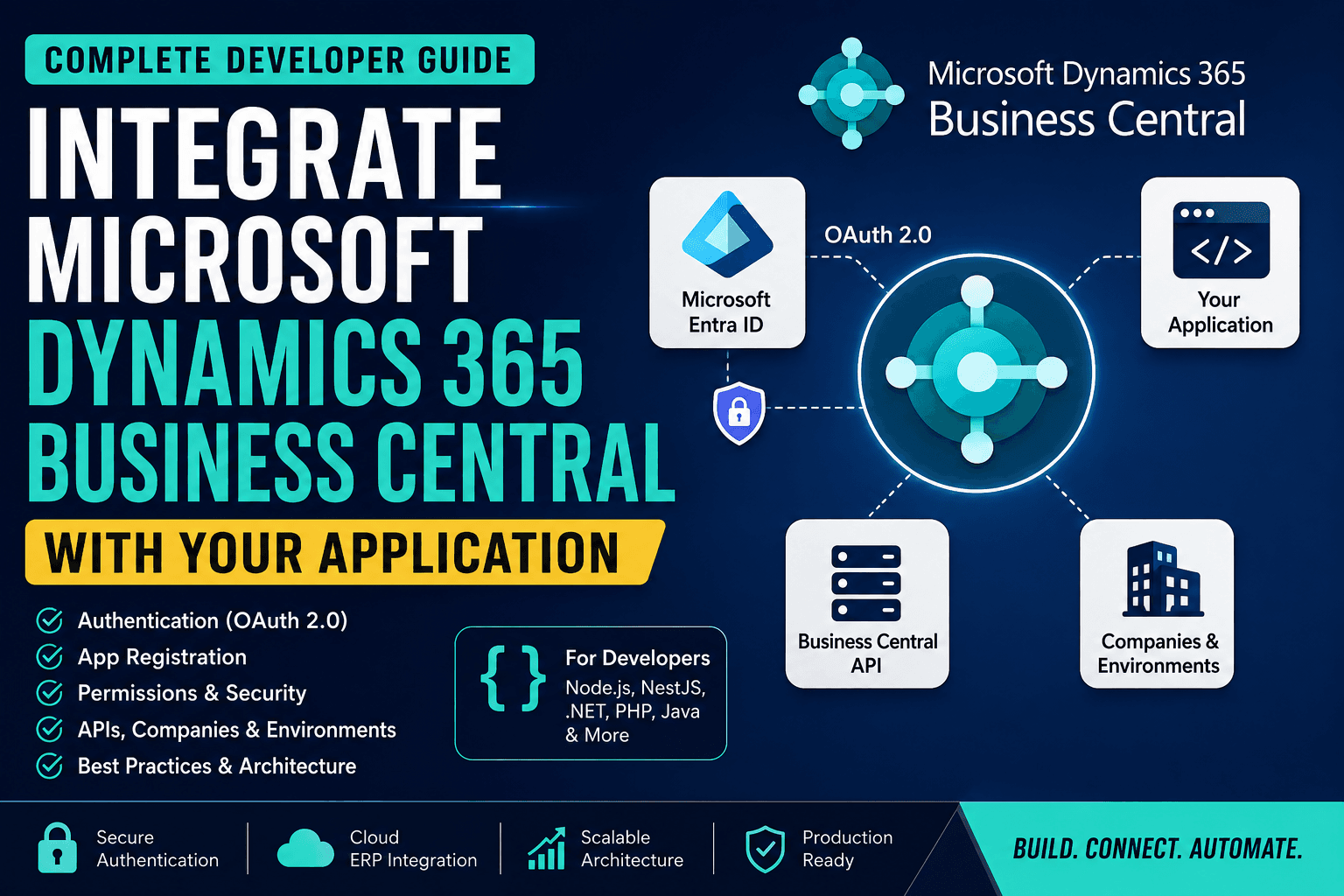
Typical Integration Architecture
Your Application
       |
       v
Microsoft Entra ID
       |
       | OAuth 2.0 Access Token
       v
Business Central API
       |
       v
Business Central Data
The important point is that your application should not directly access the Business Central database. The integration should happen through supported Business Central APIs.
What Do You Need Before Starting?
Before writing code, a developer should understand which accounts, permissions, and environments are required. Business Central integration normally involves both Microsoft Entra ID and Business Central.
- Microsoft Entra ID tenant
- Business Central tenant
- Business Central sandbox environment for development
- Permission to create or use an Entra App Registration
- Permission to register the application inside Business Central
- Required Business Central permission sets
- Access to the required Business Central companies
Developer Account vs Business Central Account
One of the first questions developers usually have is whether they need a separate Business Central developer account just to integrate an application.
The answer depends on what you are building.
Scenario 1: Integrating With an Existing Customer's Business Central
If you are building a SaaS platform or backend application that needs to connect to an existing customer's Business Central environment, you generally work with the customer's Business Central tenant and Microsoft Entra environment.
The customer may need to provide or configure:
- Business Central tenant
- Sandbox environment
- Microsoft Entra App Registration
- Client ID
- Client secret or certificate
- Required API permissions
- Business Central application registration
- Business Central permission sets
Scenario 2: Developing a Business Central Extension
If you are actually developing AL extensions for Business Central, the requirements are different. You may need a suitable Business Central development or partner environment depending on your development model.
This is different from simply consuming Business Central REST APIs from an external application.
Scenario 3: Learning Business Central APIs
For learning and API development, a Business Central sandbox is strongly recommended. You should avoid testing potentially destructive operations against a production ERP environment.
Business Central Authentication
Authentication is one of the most important parts of Business Central integration. Business Central cloud integrations use Microsoft Entra ID and OAuth 2.0 for modern authentication scenarios.
There are two important authentication approaches that developers should understand:
- Authorization Code Flow
- Client Credentials Flow
Authorization Code Flow
Authorization Code Flow is useful when a real user needs to sign in interactively and give consent to the application.
A typical flow looks like this:
User
  |
  v
Your Application
  |
  v
Microsoft Entra ID
  |
  v
User Authentication / Consent
  |
  v
Access Token
  |
  v
Business Central API
This approach can be useful for SaaS products where each customer connects their own Business Central account through an interactive "Connect Business Central" process.
Client Credentials Flow
For backend services, scheduled jobs, ERP synchronization services, background workers, and server-to-server integrations, the Client Credentials Flow is usually the preferred approach.
In this model there is no interactive user login. Your backend authenticates itself using an application identity.
Backend Application
       |
       | Client ID + Client Secret/Certificate
       v
Microsoft Entra ID
       |
       | Access Token
       v
Business Central API
This is particularly useful for:
- NestJS backend services
- Node.js applications
- .NET worker services
- Laravel applications
- Java Spring applications
- Scheduled ERP synchronization
- Invoice synchronization
- Inventory synchronization
- Customer and vendor synchronization
Which Authentication Method Should You Choose?
FeatureAuthorization CodeClient CredentialsUser LoginRequiredNot RequiredInteractive ConsentYesUsually Admin ConsentBackend ServiceLess SuitableRecommendedScheduled JobsNot IdealExcellentIdentityUserApplication
Step 1: Create Microsoft Entra App Registration
The first major technical step is creating an application identity in Microsoft Entra ID.
Open the Microsoft Entra admin center and navigate to:
Microsoft Entra ID
    ↓
App Registrations
    ↓
New Registration
After creating the application, you will receive important identifiers.
ValuePurposeApplication / Client IDIdentifies your applicationDirectory / Tenant IDIdentifies the Microsoft Entra tenantClient SecretUsed by the application to authenticateRedirect URIRequired for interactive authentication flowsObject IDIdentifies the application object in Entra
The Client ID can generally be treated as an application identifier, but the Client Secret must always be kept private.
Step 2: Configure API Permissions
Creating an App Registration alone does not give the application access to Business Central. You also need to configure the appropriate API permissions.
In the App Registration, navigate to:
API Permissions
    ↓
Add a Permission
    ↓
Dynamics 365 Business Central
Depending on the integration requirements, you may need appropriate Business Central application permissions. For example, a read/write API integration may require an appropriate Business Central API application permission.
Only request the permissions that your application actually needs. Avoid giving excessive permissions simply because they make development easier.
Step 3: Grant Admin Consent
After adding permissions, they may initially show that administrator consent has not been granted.
An authorized tenant administrator may need to grant consent before the application can use the requested permissions.
This is an important distinction:
- App Registered does not mean API Access is ready.
- Permission Added does not mean Permission Granted.
- Token Generated does not mean Business Central Access is Authorized.
Step 4: Register the Application Inside Business Central
This is one of the most commonly missed steps in Business Central integration.
Creating an application in Microsoft Entra ID does not automatically give that application the required permissions inside Business Central.
Inside Business Central, search for:
Microsoft Entra Applications
Register the application using its Client ID and enable the application. Then assign the appropriate Business Central permission sets.
Conceptually, the integration looks like this:
Microsoft Entra App
        |
        | Client ID
        v
Business Central
        |
        | Permission Sets
        v
Business Central API Access
If this step is skipped, you can have a perfectly valid OAuth token and still receive a 403 Forbidden response from Business Central.
Understanding Business Central Permission Sets
Business Central uses permissions to control what users and applications can access. For application integrations, you should follow the principle of least privilege.
Instead of giving broad administrator access, create or assign only the permissions required by the integration.
Example Permission SetPurposeERP_CUSTOMER_READRead customer informationERP_VENDOR_READRead vendor informationERP_ITEM_READRead inventory itemsERP_ORDER_RWRead and write ordersERP_INVOICE_RWRead and write invoices
A production integration should never request more permissions than it actually requires.
OAuth 2.0 Token Request
For a Client Credentials implementation, the backend requests an access token from Microsoft Entra ID.
The token endpoint follows this structure:
https://login.microsoftonline.com/{TENANT_ID}/oauth2/v2.0/token
The request contains values similar to:
client_id
client_secret
grant_type=client_credentials
scope=https://api.businesscentral.dynamics.com/.default
A successful response contains an access token:
{
  "token_type": "Bearer",
  "access_token": "YOUR_ACCESS_TOKEN",
  "expires_in": 3599
}
The access token should then be sent with Business Central API requests using the Authorization header.
Authorization: Bearer YOUR_ACCESS_TOKEN
Token Caching
One common mistake is requesting a new OAuth token for every Business Central API request. This is unnecessary and can create additional authentication traffic.
Instead, cache the access token until it is close to expiration.
Request
   ↓
Check Token Cache
   ↓
Token Available?
   ├── Yes → Reuse Token
   |
   └── No → Request New Token
                ↓
             Cache Token
A small expiration buffer is also recommended so that a token does not expire while an API request is being processed.
NestJS Token Service Example
import { Injectable } from '@nestjs/common';
import axios from 'axios';

@Injectable()
export class BusinessCentralAuthService {
  private token?: string;
  private expiresAt = 0;

  async getAccessToken(): Promise<string> {
    if (this.token && Date.now() < this.expiresAt) {
      return this.token;
    }

    const response = await axios.post(
      `https://login.microsoftonline.com/${process.env.BC_TENANT_ID}/oauth2/v2.0/token`,
      new URLSearchParams({
        client_id: process.env.BC_CLIENT_ID!,
        client_secret: process.env.BC_CLIENT_SECRET!,
        grant_type: 'client_credentials',
        scope: 'https://api.businesscentral.dynamics.com/.default',
      }),
    );

    this.token = response.data.access_token;

    this.expiresAt =
      Date.now() + response.data.expires_in * 1000 - 60000;

    return this.token;
  }
}
Business Central API Endpoint Structure
Business Central provides standard APIs that can be consumed using HTTPS requests. A typical API URL contains the environment and API version information.
https://api.businesscentral.dynamics.com/v2.0/{environment}/api/v2.0/
The API can then expose resources such as:
- Companies
- Customers
- Vendors
- Items
- Sales Orders
- Sales Invoices
- Purchase Orders
- Purchase Invoices
Business Central Companies
One Business Central environment can contain multiple companies. For example, an organization may have separate companies for different countries, business units, or legal entities.
CompanyExample PurposeABC India Pvt LtdIndia OperationsABC USA LLCUS OperationsABC UK LtdUK Operations
A developer should not rely on the company name as the permanent identifier. Store the Business Central company GUID in your application's database.
organizations

id
name
bc_tenant_id
bc_environment
bc_company_id
bc_company_name
Why Company ID Should Be Stored
Company names can change. A company GUID is a much better identifier for application-level mapping.
For example:
Your Organization
        |
        +---- Business Central Tenant
        |
        +---- Environment
        |
        +---- Company GUID
This becomes especially important when your application supports multiple organizations or customers.
Multi-Tenant SaaS Integration
If you are building a SaaS application, each customer may have a different Business Central tenant, environment, company, and application configuration.
For example:
CustomerTenantEnvironmentCompanyCustomer ATenant AProductionCompany ACustomer BTenant BProductionCompany BCustomer CTenant CSandboxCompany C
Your database should therefore be designed to store Business Central connection information per organization.
Recommended Connection Model
bc_connections

id
organization_id
tenant_id
environment
client_id
secret_reference
company_id
status
created_at
updated_at
This approach allows your SaaS application to connect multiple organizations to their respective Business Central environments without mixing credentials or company data.
Standard APIs vs Custom APIs
Business Central provides standard APIs for many common ERP entities. These APIs should be preferred whenever they provide the data your application needs.
Examples include:
- Customers
- Vendors
- Items
- Sales Orders
- Sales Invoices
- Purchase Orders
- Companies
When Do You Need a Custom API?
Sometimes a Business Central implementation contains custom tables or business logic that is not available through the standard API.
Examples could include:
- Employee Advances
- Dealer Commission
- Custom Payroll Data
- Internal Approval Data
- Custom Inventory Tables
- Industry-specific ERP tables
In these cases, a Business Central developer can create a custom API using AL.
Example Custom API Structure
page 50100 EmployeeAPI
{
    PageType = API;

    APIPublisher = 'mycompany';

    APIGroup = 'erp';

    APIVersion = 'v1.0';

    EntityName = 'employee';

    EntitySetName = 'employees';
}
The resulting API can then be consumed by your external application.
Calling Business Central from NestJS
A dedicated Business Central service is recommended instead of scattering API calls throughout your application.
import { Injectable } from '@nestjs/common';
import axios from 'axios';

@Injectable()
export class BusinessCentralService {

  constructor(
    private readonly authService: BusinessCentralAuthService,
  ) {}

  async getCustomers(companyId: string) {

    const token =
      await this.authService.getAccessToken();

    const url =
      `${process.env.BC_BASE_URL}/companies(${companyId})/customers`;

    const response = await axios.get(url, {
      headers: {
        Authorization: `Bearer ${token}`,
        Accept: 'application/json',
      },
    });

    return response.data;
  }
}
Keep Business Central Credentials in the Backend
Business Central credentials should never be exposed to the browser or mobile application.
Never put these values in frontend code:
- Client Secret
- Private Certificate Key
- Application Credentials
- Backend-only OAuth credentials
The frontend should communicate with your backend, and the backend should communicate with Business Central.
React / Next.js
       |
       | HTTPS
       v
Your Backend
       |
       | OAuth
       v
Business Central
Environment Variables
At minimum, your backend configuration may contain values similar to:
BC_TENANT_ID=
BC_CLIENT_ID=
BC_CLIENT_SECRET=
BC_ENVIRONMENT=
BC_COMPANY_ID=
BC_BASE_URL=
For production systems, sensitive credentials should preferably be stored in a dedicated secrets-management solution instead of being committed to source control.
Sandbox vs Production
Never begin development by directly connecting your application to a production Business Central environment.
A safer development lifecycle is:
Local Development
       ↓
Business Central Sandbox
       ↓
Integration Testing
       ↓
QA / UAT
       ↓
Production
This is particularly important when your integration creates or modifies financial data such as invoices, orders, payments, or ledger-related information.
Handling 401 and 403 Errors
Two of the most common errors during Business Central integration are HTTP 401 and 403.
401 Unauthorized
A 401 response usually indicates an authentication problem. Check:
- Tenant ID
- Client ID
- Client Secret
- OAuth scope
- Access token expiration
- Token audience
403 Forbidden
A 403 response generally means that authentication succeeded but the application does not have the required authorization.
Check:
- Business Central application registration
- Application state
- Permission Sets
- Company permissions
- Required API permissions
- Admin consent
Business Central HTTP Status Codes
Status CodeMeaningTypical Cause200OKSuccessful request201CreatedResource created400Bad RequestInvalid request or payload401UnauthorizedAuthentication problem403ForbiddenPermission problem429Too Many RequestsAPI throttling503Service UnavailableTemporary service issue504Gateway TimeoutLong-running request / timeout
Handling 429 Throttling
ERP integrations should be designed with throttling in mind. If your application sends a large number of requests in a short period, Business Central may throttle the requests.
Do not immediately retry the same request continuously. Use exponential backoff.
Attempt 1
    ↓
Wait 1 second

Attempt 2
    ↓
Wait 2 seconds

Attempt 3
    ↓
Wait 4 seconds

Attempt 4
    ↓
Fail / Dead Letter Queue
Example Retry Logic
for (let attempt = 1; attempt <= 4; attempt++) {

  try {

    return await callBusinessCentral();

  } catch (error) {

    const status = error?.response?.status;

    if (![429, 503].includes(status)) {
      throw error;
    }

    await sleep(1000 * Math.pow(2, attempt));
  }
}

throw new Error('Business Central request failed');
Use a Queue for Large Synchronization Jobs
If your application needs to synchronize thousands of customers, items, invoices, or other records, do not perform the entire synchronization inside a single HTTP request.
A better architecture is:
Business Central API
       |
       v
Queue
       |
       v
Background Worker
       |
       v
PostgreSQL
Depending on your stack, technologies such as Redis, BullMQ, RabbitMQ, or another message queue can be used for background synchronization.
This makes your integration more reliable because failed jobs can be retried without forcing the user to keep an HTTP connection open.
Delta Synchronization
Another important optimization is avoiding full synchronization every time.
Instead of repeatedly downloading every record, maintain a synchronization checkpoint.
Initial Sync
    ↓
Store last_sync_at
    ↓
Next Sync
    ↓
Fetch changed records
    ↓
Update Database
    ↓
Update last_sync_at
This can significantly reduce API traffic when dealing with large Business Central datasets.
Pagination
Never assume that an API response will contain every record. Large datasets should be processed using pagination.
For example, your integration might process:
Page 1 → 100 records
Page 2 → 100 records
Page 3 → 100 records
...
Page N → Completed
For large synchronization jobs, save progress after successful batches so the process can resume after a failure.
API Filtering
Use filtering and field selection whenever possible. Do not request a complete object when your application only needs a few fields.
For example:
?$select=id,displayName,email
Using filtering, selection, pagination, and other supported OData query capabilities can reduce payload sizes and improve integration performance.
ETag and Concurrent Updates
When multiple systems can update the same Business Central record, concurrency becomes important.
For example:
Application A
    ↓
Invoice Amount = 500

Application B
    ↓
Invoice Amount = 700
If your application blindly overwrites data, you may accidentally replace another system's recent update.
For update operations, consider the version information returned by the API and use appropriate concurrency control such as ETags and If-Match where supported.
Recommended Database Design
A production integration should maintain its own connection and synchronization metadata.
Business Central Connections
bc_connections

id
organization_id
tenant_id
environment
client_id
secret_reference
company_id
status
created_at
updated_at
Synchronization Logs
sync_logs

id
connection_id
entity
started_at
completed_at
records_processed
status
error_message
Important Data to Track
- Business Central Tenant ID
- Environment Name
- Company GUID
- Connection Status
- Last Successful Sync
- Last Failed Sync
- Number of Records Processed
- API Errors
Security Best Practices
1. Never Expose Client Secrets
Client secrets should remain on the backend. They should never be sent to React, Next.js, mobile applications, or browser JavaScript.
2. Use Secret Management
For production deployments, use a secure secret management solution such as Azure Key Vault or another appropriate cloud secret manager.
3. Rotate Credentials
Have a defined process for rotating client secrets or certificates. Do not wait until credentials expire before thinking about rotation.
4. Follow Least Privilege
Give the Business Central application only the permissions it actually needs. Avoid using excessive administrative permissions for convenience.
5. Separate Sandbox and Production Credentials
Do not reuse production credentials in development environments. Keep development, testing, and production configurations separate.
Audit Logging
ERP integrations should be observable. When something goes wrong, developers should be able to identify exactly what happened.
Useful information to log includes:
- Organization ID
- Business Central Company ID
- Environment
- API Endpoint
- HTTP Method
- Status Code
- Request Duration
- Correlation ID
- Synchronization Job ID
Do not log sensitive credentials or complete access tokens.
Recommended Production Architecture
                    Next.js / React
                          |
                          v
                    NestJS Backend
                          |
          +---------------+---------------+
          |               |               |
          v               v               v
     PostgreSQL        Redis          Queue/Worker
          |               |               |
          |         Token Cache       Sync Jobs
          |               |               |
          +---------------+---------------+
                          |
                          v
                  Microsoft Entra ID
                          |
                    OAuth 2.0 Token
                          |
                          v
              Business Central API
                          |
             +------------+------------+
             |            |            |
             v            v            v
          Company A    Company B    Company C
Business Central Integration Checklist
- Microsoft Entra App Registration created
- Client ID obtained
- Tenant ID obtained
- Client Secret or certificate configured
- Required API permissions added
- Admin consent granted
- Application registered inside Business Central
- Business Central permission sets assigned
- Sandbox environment configured
- Company GUID identified
- OAuth token generation tested
- Business Central API request tested
- Token caching implemented
- 401 and 403 handling implemented
- 429 and 503 retry logic implemented
- Pagination implemented
- Background synchronization implemented
- Audit logging implemented
- Production credentials separated from development
- Secret management configured
Common Business Central Integration Mistakes
Mistake 1: Only Creating the Azure App
Creating the Microsoft Entra application is only one part of the setup. The application also needs to be registered and authorized inside Business Central.
Mistake 2: Testing Directly on Production
Always use a sandbox for initial API development and testing. Accidentally creating or modifying financial records in production can have serious consequences.
Mistake 3: Hardcoding Company Names
Use the Business Central company GUID as the primary identifier rather than depending on the company display name.
Mistake 4: Requesting a New Token for Every Request
Cache OAuth tokens and reuse them until they are close to expiration.
Mistake 5: Giving Excessive Permissions
Do not use broad administrator permissions simply to make development easier. Use the minimum required Business Central permission sets.
Mistake 6: Ignoring API Throttling
Large synchronization jobs can generate a large number of API requests. Implement retry, exponential backoff, queues, and batching.
What Should a Developer Ask the Client Before Starting?
If you are integrating Business Central for a client, collect the following information before starting development.
InformationWhy You Need ItBusiness Central Tenant IDRequired for authentication and environment identificationEnvironment NameIdentifies Sandbox or ProductionCompany NameHelps identify the target companyCompany GUIDStable company identifier for API callsClient IDIdentifies the applicationClient Secret / CertificateApplication authenticationAPI PermissionsDetermines what your integration can accessPermission SetsControls Business Central authorizationRequired EntitiesDefines what your application needs to synchronizeCustom TablesDetermines whether custom APIs are required
Questions to Ask Before Development
- Which Business Central environment are we connecting to?
- Is the environment Sandbox or Production?
- Which companies need to be connected?
- Do we need read-only or read/write access?
- Which entities need to be synchronized?
- Are standard APIs sufficient?
- Are there custom Business Central tables?
- Do we need a custom API?
- Will one customer have multiple companies?
- Will the SaaS platform support multiple Business Central tenants?
- Is synchronization real-time or scheduled?
- How many records are expected?
- How frequently should synchronization run?
- Who will manage Business Central permissions?
- Who will manage Microsoft Entra App Registration?
Final Architecture Recommendation
If you are building a production ERP-connected SaaS application using technologies such as NestJS, Next.js, PostgreSQL, and Redis, a clean architecture is:
Frontend
   ↓
NestJS API
   ↓
Business Central Integration Service
   ↓
Microsoft Entra ID
   ↓
OAuth 2.0
   ↓
Business Central API

Supporting Services:

PostgreSQL
   ├── BC Connections
   ├── Company Mapping
   ├── Sync Logs
   └── Integration State

Redis
   └── OAuth Token Cache

Queue / Worker
   ├── Background Sync
   ├── Retry Jobs
   └── Large Data Processing
Conclusion
Microsoft Dynamics 365 Business Central integration is not simply about sending HTTP requests to an ERP API. A reliable integration requires a complete authentication and authorization architecture.
The most important things for a developer to understand are:
- Microsoft Entra ID
- OAuth 2.0
- App Registration
- API Permissions
- Admin Consent
- Business Central Application Registration
- Permission Sets
- Companies and Company GUIDs
- Sandbox and Production Environments
- Standard and Custom APIs
- Token Caching
- Pagination
- Throttling and Retry Handling
- Queue-based Synchronization
- Security and Secret Management
The most important architectural rule is to treat Business Central as an external enterprise system rather than as a normal CRUD database. Keep authentication and secrets inside the backend, use sandbox environments for development, follow least-privilege permissions, maintain company mappings, and build synchronization processes that can handle failures, retries, throttling, and large datasets.
With this architecture, your application can integrate with Business Central in a secure, scalable, and maintainable way while remaining flexible enough to support multiple organizations and Business Central companies.
Frequently Asked Questions
Do I need Azure to integrate Business Central?
For Business Central cloud integrations using Microsoft Entra ID and OAuth 2.0, you need access to a Microsoft Entra tenant and an application registration. Your application itself does not necessarily need to be hosted on Azure.
Do I need a Business Central developer account?
Not necessarily. If you are only consuming Business Central APIs for an existing customer's ERP, you primarily need access to the customer's Business Central environment and the required Microsoft Entra and Business Central permissions. Requirements are different if you are developing and distributing Business Central extensions.
Can Node.js connect to Business Central?
Yes. Node.js applications can communicate with Business Central using HTTPS REST API requests and OAuth 2.0 authentication.
Can NestJS connect to Business Central?
Yes. NestJS is well suited for Business Central integrations because authentication, API clients, queues, background workers, synchronization services, and organization-specific connection management can be separated into dedicated modules.
Can one application connect to multiple Business Central companies?
Yes. Your application can work with multiple companies, provided the application has the appropriate access and you correctly maintain the company identifiers and tenant/environment mappings.
Should Business Central credentials be stored in PostgreSQL?
Sensitive credentials should preferably be stored in a dedicated secret-management system. Your database can store a reference to the secret rather than storing the raw client secret whenever practical.
Should the frontend call Business Central directly?
For a typical SaaS or backend-controlled integration, the frontend should communicate with your backend, while the backend manages authentication and communication with Business Central. This prevents sensitive credentials from being exposed to browsers and centralizes authorization, logging, retries, and synchronization logic.
What is the biggest mistake when integrating Business Central?
One of the most common mistakes is assuming that a valid Microsoft Entra access token automatically gives access to Business Central. The application must also be correctly registered and authorized inside Business Central with appropriate permission sets.